.png)
On 10th April 2026, Snowflake officially released its custom budget functionality for AI services into General Availability. This functionality is wrapped into the existing “budget” object infrastructure for targeted cost monitoring.
This core new functionality being introduced here is the concept of a “shared resource” for budgets. Budgets monitoring shared resources will monitor that resource across multiple users via tags.
Shared resources currently cover four different domains at time of writing:
- AI functions
- Cortex code
- Cortex agents
- Snowflake intelligence
As you can see, these options are all related to AI functionality.
The general process to monitor these costs is as follows:
- Create a tag to divide your users into groups that will be monitored individually
- Create a custom budget to monitor AI costs
- Attach your budget to your tag
- Configure a custom action that will revoke AI access when the budget exceeds its limit
A quick note on RBAC
For the purposes of this article, it is assumed that all actions are being taken using the ACCOUNTADMIN role. If you wish to leverage a more limited custom role to deploy this functionality then it is recommended to review the Snowflake documentation for exactly which RBAC privileges will be required for the custom role. At minimum, it will need:
- Ability to create tags within a database
- Ability to create budgets within a database
- Ability to apply tags to users
- Ability to modify grants to users
A. Create a tag to divide your users into groups
We start by creating a simple tag to divide users into groups and apply that tag to a set of users.
create or replace tag "AI_BUDGET_GROUP"
  allowed_values 'ENGINEERING', 'ANALYTICS'
;

alter user "CHRIS.HASTIE"
  set tag "AI_BUDGET_GROUP" = 'ENGINEERING'
;

alter user "JOE.BLOGGS"
  set tag "AI_BUDGET_GROUP" = 'ANALYTICS'
;
This is obviously a small example just to demonstrate the functionality. In a real-world situation, you would likely divide your users into a larger number of groups, potentially by their business domain (finance, HR, product, etc), or through some other internal business logic for cost attribution.
If this does not suit your use case and you simply wish to monitor everything at an account level, then your allowed values list could be a single value that is applied to all users.
B. Create a custom budget to monitor AI costs
To create a custom budget, start with a simple SQL statement:
create SNOWFLAKE.CORE.BUDGET "AI_BUDGET"();This will create a budget which you can then configure. There are a variety of configurations which can be applied to budgets, including monitoring specific resources, sending notifications at specific thresholds, configuring a spending limit, setting a cycle, and more.
For this example, we will target the core functionality to get you up and running. These are:
- Ensure AI functionality is monitored
- Set a specific monthly cost limit and refresh tier
- Configure notifications
All these tasks are achieved by calling methods that sit within the budget object.
B1. Ensure AI functionality is monitored
To ensure AI functionality is monitored, the ADD_SHARED_RESOURCE method is called for each of the AI services that can be monitored.
call "AI_BUDGET"!add_shared_resource('AI FUNCTION');
call "AI_BUDGET"!add_shared_resource('CORTEX CODE');
call "AI_BUDGET"!add_shared_resource('CORTEX AGENT');
call "AI_BUDGET"!add_shared_resource('SNOWFLAKE INTELLIGENCE');
If you wish, you can apply more granular monitoring by leveraging different budgets for each shared resource. You can also target specific subdomains if you wish by including a second argument in your query. For example:
call "AI_BUDGET"!add_shared_resource('AI FUNCTION', 'AI_TRANSLATE');If you wish to see a list of all available resources that can be monitored within one of these domains, you can leverage the SYSTEM$SHOW_BUDGET_SHARED_RESOURCE_CANDIDATES function. At time of writing, this only supports the AI_FUNCTION domain, but I expect this list will grow shortly.
select
    "VALUE":"domain"::string as "DOMAIN"
  , "VALUE":"id"::int as "ID"
  , "VALUE":"name"::string as "NAME"
from table(flatten(
    input => parse_json(system$show_budget_shared_resource_candidates('AI_FUNCTION'))
  ))
;
The above query outputs the following values at time of writing, demonstrating which AI functions can currently be monitored using budgets:
B2. Set a specific monthly cost limit and refresh tier
By default, a new budget will not have a valid spending limit. If you retrieve the spending limit with the get_spending_limit() method, the value returned will be -1.
To set your own limit, leverage the set_spending_limit() method. For this example, we can set our spending limit to 5 credits as we deliberately want to keep it low for the demonstration.
call "AI_BUDGET"!set_spending_limit(5);This budget is now configured with a spending limit, but it is not yet ready to proactively guard against unexpected high AI costs. This is where the refresh tier comes in. By default, a budget is configured to have a refresh interval of up to 6.5 hours. This is the frequency at which resource and credit consumption will be updated for the budget in question. This is great for most cases, but when considering AI costs, this could be far too late. Ideally, you would want to be monitoring these events as early as possible, as it is very likely that your costs could be inflating from a series of queries running in succession. A six-hour delay on the budget's refresh could allow a large number of queries to continue burning a large volume of AI tokens before being identified. To improve your protection, you can reduce this down to an hourly refresh cycle. This is achieved by setting the refresh tier to one hour with the following command:
call "AI_BUDGET"!set_refresh_tier('TIER_1H');At time of writing, the only options for the set_refresh_tier method are the 1-hour and 6-hour tiers.
B3. Configure notifications
By default, Snowflake budgets will send an email notification to the provided list of recipients when the projected spending is more than 10% above the spending limit of the budget. It is important to both update that threshold if desired, and to configure the recipients of the email.
The threshold can be configured using the set_notification_threshold method. For example, the following call sets the notification threshold to 90% of the limit:
call "AI_BUDGET"!set_notification_threshold(90);As for the recipient list, this is provided as a comma-separated list to the set_email_notifications method. Here is an example:
call "AI_BUDGET"!set_email_notifications('my.name@company.com, other.name@company.com, datateam@company.com');It is important to note that this default notification method leverages Snowflake's native email integration.
Snowflake's native email integration can only send emails to email addresses that have been verified for an existing Snowflake user
This means two vital things:
- It is important for human users to verify their email address in Snowflake. They can do so by selecting their profile icon in the bottom left corner of the Snowsight user interface and selecting “settings”.
- If you wish to send emails to a shared inbox that does not belong to an individual human, you may need to set up a service principal within your Snowflake account that is configured with that email address. In that case, you will need to trigger the email validation process with the SYSTEM$START_USER_EMAIL_VERIFICATION function.
C. Attach your budget to your tag
To attach a budget to a tag, the set_user_tags method is leveraged. The inputs for this method can be strange to get used to as the input is an array of arrays, where each of the inner arrays includes a system reference to a specific tag, along with the tag value. This is easier to see with an example first, and then we will describe what is happening.
The following example demonstrates how we can configure the budget to monitor when anybody across both engineering or analytics leverages any AI functionality.
call "AI_BUDGET"!set_user_tags(
      [
        [
            (select system$reference(
                'TAG'
              , 'AI_BUDGET_GROUP' -- The tag name that will be monitored
              , 'SESSION', 'APPLYBUDGET'
            ))
          , 'ENGINEERING' -- The tag value that will be monitored
        ],
        [
            (select system$reference(
                'TAG'
              , 'AI_BUDGET_GROUP' -- The tag name that will be monitored
              , 'SESSION', 'APPLYBUDGET'
            ))
          , 'ANALYTICS' -- The tag value that will be monitored
        ]
      ]
    , 'UNION' -- Determines whether the budget will monitor when processes happen for any of the tags (UNION) or only when all tags are active at the same time (INTERSECT)
  )
;
The crucial component here is that there is a fixed set of inputs required for the system$reference function, and most of these will be the same whenever we are referencing tags. The specific values which need to be changed are commented above and represent the tag name and value. Finally, near the end there is a final input to determine whether the budget will monitor activity that takes place across any of the tags provided, or whether it should be limited to only monitor activity that takes place when all tags are active simultaneously. This latter option is useful if you have multiple tag pairs in place and specifically wish to monitor activity more closely within that realm. For example, it could be that we wish to monitor activity for engineers that is specifically related to workloads for a specific project.
D. Configure a custom action that will revoke AI access when the budget exceeds its limit
So far, we have completed all the necessary steps to monitor AI costs for our users in Snowflake. We can now navigate to the cost management area within the SnowSight UI and directly view the spend aligned against that budget:
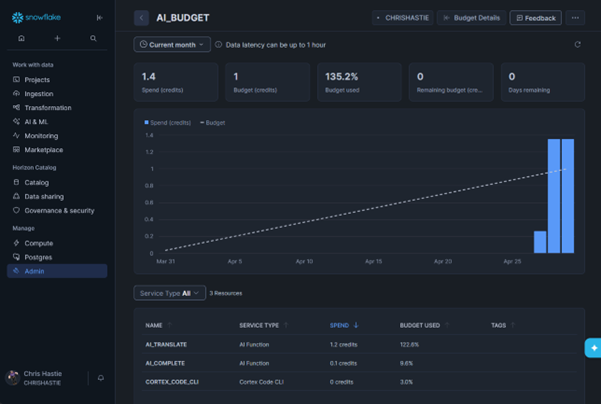
We will also receive notifications as configured above:
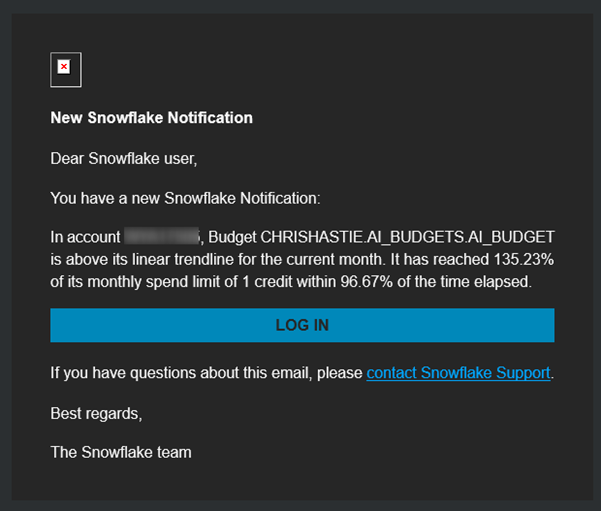
This is great for retrospectively understanding costs and for notifying users when costs are exceeding thresholds, but it is not sufficient to proactively block users from further spending. The missing piece of the puzzle is to configure a custom action in the form of a stored procedure that can revoke AI access from these users when the limit is exceeded, and another to grant that access back to those users at the start of the next budget cycle.
D1. Revoking AI access from the PUBLIC role
A critical component to this is revoking AI access from the PUBLIC role, which means all new users will have AI disabled by default. Access will then be granted to specific users directly.
It is therefore recommended to start by granting access to the necessary users, before revoking it from PUBLIC. For example:
grant database role "SNOWFLAKE"."CORTEX_USER" to user "...";Now that we have ensured our users can still access AI functionality through direct grants, we can continue to revoke access from the PUBLIC role.
Taking this action will block all existing users from leveraging AI unless you have already granted access to them separately.
To revoke AI access from the PUBLIC role, execute this simple command:
revoke database role "SNOWFLAKE"."CORTEX_USER" from role "PUBLIC";D2. Configuring the stored procedure to grant access at the start of each billing cycle
The following stored procedure is an example that will restore AI functionality access to a list of desired users:
create procedure "RESTORE_AI_ACCESS"()
  returns variant
  language python
  runtime_version = '3.13'
  packages = ('snowflake-snowpark-python')
  handler = 'main'
  execute as owner
as
$$
from snowflake.snowpark import session as snowpark_session
import json

def main(
      snowflake_session: snowpark_session
  ) -> dict :

  # Determine list of users
  sf_df_users = snowflake_session.sql("""
    select array_agg("OBJECT_NAME")
    from table("SNOWFLAKE"."ACCOUNT_USAGE"."TAG_REFERENCES_WITH_LINEAGE"('MY_DATABASE.MY_SCHEMA.AI_BUDGET_GROUP'))
    where "DOMAIN" = 'USER'
      and "TAG_VALUE" in ('ENGINEERING', 'ANALYTICS')
  """).collect()[0][0]

  # Iterate over list of users to modify access
  list_of_users = json.loads(sf_df_users)

  results = {}
  for user in list_of_users:
    try:
      snowflake_session.sql(f'grant database role "SNOWFLAKE"."CORTEX_USER" to user "{user}"').collect()
      snowflake_session.sql(f'grant use AI functions on account to user "{user}"').collect()
      results[user] = 'SUCCESS'
    except Exception as e:
      results[user] = str(e)

  return results
$$
;
This is just an example and real-world scenarios may require more complexity. This procedure can be executed by simply calling it:
call "RESTORE_AI_ACCESS"();This can then be configured as the budget's cycle-start action, which means it will be executed each time a new monitoring cycle (month) begins.
-- Ensure the SNOWFLAKE application can execute the procedure
grant usage on database "MY_DATABASE" to application "SNOWFLAKE";
grant usage on schema "MY_DATABASE"."MY_SCHEMA" to application "SNOWFLAKE";
grant usage on procedure "RESTORE_AI_ACCESS"() to application "SNOWFLAKE";

-- Set the procedure as the action to take at the start of the budget's monitoring cycle
call "AI_BUDGET"!set_cycle_start_action(
    system$reference('PROCEDURE', '"RESTORE_AI_ACCESS"()') -- Reference to the stored procedure
  , array_construct() -- Array of variables that should be provided to the stored procedure, empty for our example
)
;
D3. Configuring the stored procedure to revoke access when the credit limit is exceeded
The following stored procedure is an example that will revoke AI functionality access from a list of desired users:
create procedure "REVOKE_AI_ACCESS"()
  returns variant
  language python
  runtime_version = '3.13'
  packages = ('snowflake-snowpark-python')
  handler = 'main'
  execute as owner
as
$$
from snowflake.snowpark import session as snowpark_session
import json

def main(
      snowflake_session: snowpark_session
  ) -> dict :

  # Determine list of users
  sf_df_users = snowflake_session.sql("""
    select array_agg("OBJECT_NAME")
    from table("SNOWFLAKE"."ACCOUNT_USAGE"."TAG_REFERENCES_WITH_LINEAGE"('MY_DATABASE.MY_SCHEMA.AI_BUDGET_GROUP'))
    where "DOMAIN" = 'USER'
      and "TAG_VALUE" in ('ENGINEERING', 'ANALYTICS')
  """).collect()[0][0]

  # Iterate over list of users to modify access
  list_of_users = json.loads(sf_df_users)

  results = {}
  for user in list_of_users:
    try:
      snowflake_session.sql(f'revoke database role "SNOWFLAKE"."CORTEX_USER" to from "{user}"').collect()
      snowflake_session.sql(f'revoke use AI functions on account to from "{user}"').collect()
      results[user] = 'SUCCESS'
    except Exception as e:
      results[user] = str(e)

  return results
$$
;
This is just an example and real-world scenarios may require more complexity. This procedure can be executed by simply calling it:
call "REVOKE_AI_ACCESS"();This can then be configured as the budget's cycle-start action, which means it will be executed each time a new monitoring cycle (month) begins.
-- Ensure the SNOWFLAKE application can execute the procedure
grant usage on database "MY_DATABASE" to application "SNOWFLAKE";
grant usage on schema "MY_DATABASE"."MY_SCHEMA" to application "SNOWFLAKE";
grant usage on procedure "REVOKE_AI_ACCESS"() to application "SNOWFLAKE";

-- Set the procedure as the action to take at the start of the budget's monitoring cycle
call "AI_BUDGET"!set_cycle_start_action(
    system$reference('PROCEDURE', '"RESTORE_AI_ACCESS"()') -- Reference to the stored procedure
  , array_construct() -- Array of variables that should be provided to the stored procedure, empty for our example
  , 'ACTUAL', 100 -- Threshold at which to take the custom action
)
;
The above custom action will revoke AI access as soon as it detects costs that exceed the configured limit.
Remember that the cost monitoring for these budgets are only updated on an hourly basis!
Disclaimer
This example controls access by leveraging user-level privileges grants. If you wish, you could also leverage roles and Snowflake's RBAC model to achieve a similar result. However, I have opted in this example to go with user-based privilege grants, as the AI-based shared resources budget functionality currently relies on user-based tags.
Some parting advice
This article has walked through a basic technical guide to configuring proactive cost restrictions on your AI functionality usage within Snowflake.
It is important to keep in mind that the costs and credit consumption attributed to this budget are only refreshed on an hourly basis. This means that there is still a risk of a single large spend running away with a lot of credit consumption before being detected, as users are able to do a lot inside an hour. It is therefore crucial to put these guardrails in place, but still maintain strong internal standards and quality controls when developing anything using AI functionality.
It is far too easy to rely on an AI to generate code and then to test the code and then to improve the code and then to document the code, etc. By the end of all of it, you realize that you have barely touched any of the process yourself, and the code base is lengthy enough that reviewing it feels like a chore. AI should be used as an optimizer and an addition to your existing skill set. It is not advised to let AI replace your skill set. Inevitably, there will be situations where an AI far exceeds human capabilities, and there will be situations where human capabilities far exceed that of AI. Nobody knows your data better than you know it yourself. Yes, a technical process can parse metadata, understand naming conventions, classify information based on populated values, etc., but it cannot maintain the wider context that you have built up throughout your career. I'm not saying that it cannot do a strong imitation, but there are always opportunities and arguably necessities for human oversight on AI processes.
The best way to avoid excessive unexpected cost issues is to combine technical guardrails, such as the custom budgets that we have discussed in this article, with regular human oversight. In a companion article, we discussed a representative example of a scenario where AI spend can unexpectedly and exponentially escalate.
This example scenario is detailed here: A Background and Representative Example on the Cost Risks of AI Functionality.


.png)